The Timer
The heart of Epilog. It works like a friendly check-in timer: it counts down in short intervals, and when one ends it asks what you were working on. Over the day that becomes an effortless log.
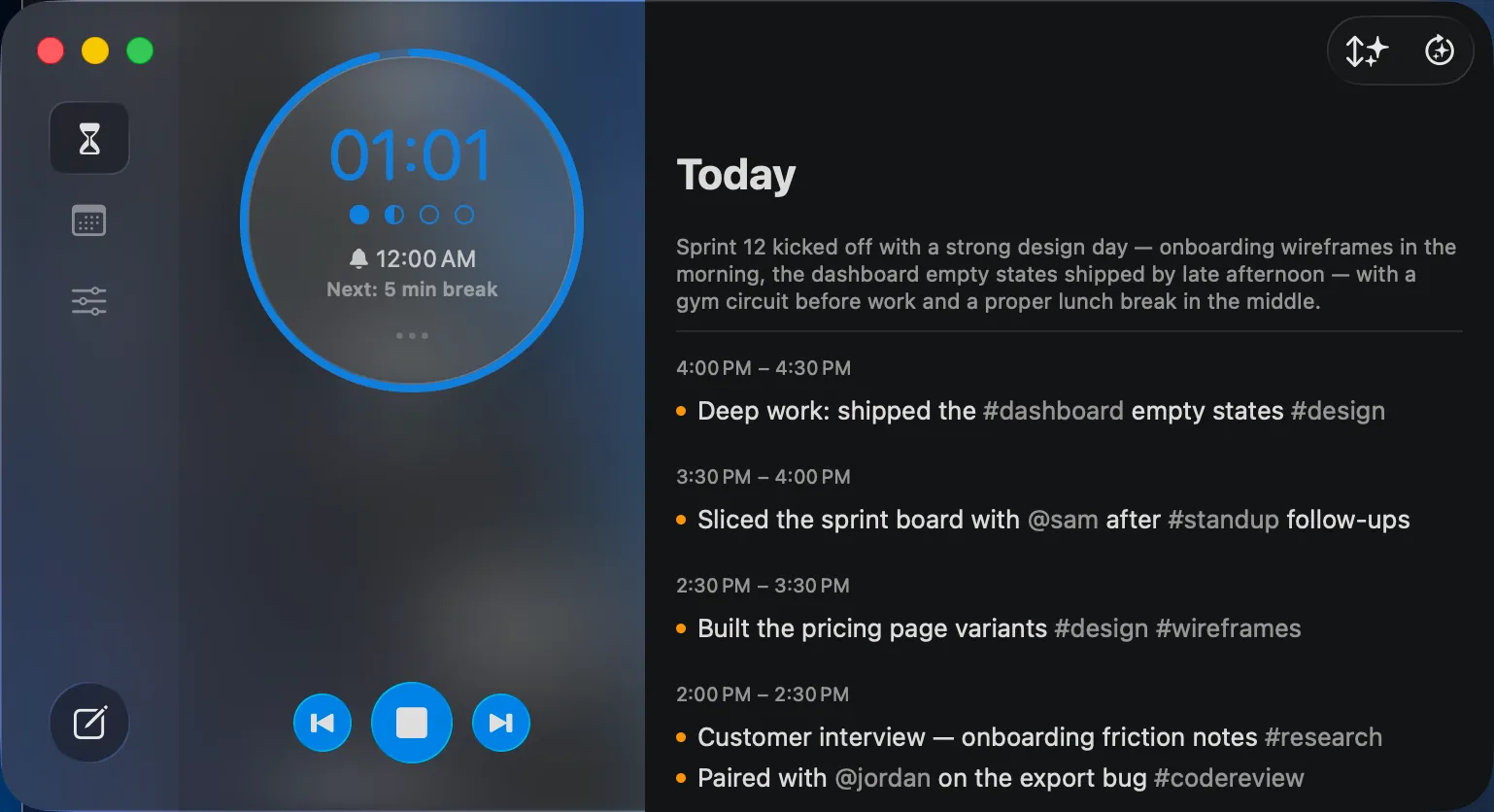 The circular timer on the Today screen — countdown in the center, a row of session dots below it, and “Next: …” underneath.
On macOS 26 and iOS 26, the timer wears Liquid Glass — the disc becomes a hand-tuned glass lens floating over your day. Prefer a flatter look? Settings → General → Theme switches the disc back to Classic (and on the Mac, picks the backdrop behind it). On earlier OS versions, the familiar chrome stays.
Reading the timer
Section titled “Reading the timer”- The countdown in the center is time left in the current interval. When nothing’s running it shows
--:--. - The dots are your session so far: empty = not started, half-filled = in progress, filled = done.
- The line underneath describes the current interval, with a “Next: …” preview of what follows (a break, or another session).
The controls
Section titled “The controls”Three buttons sit under the timer:
- ▶︎ Play / ■ Stop (center) — start a check-in interval, or stop the running one. During a break it becomes a Pause button.
- ⏮ Previous (left) — go back an interval. If a break is running, this restarts the break from the top. Disabled on the very first interval.
- ⏭ Next (right) — skip ahead to the next interval. If the timer was running, the next one starts automatically.
There’s also a ⋯ menu on the timer with a single Reset — it finishes the current session and starts the cycle over.
Check-ins and breaks
Section titled “Check-ins and breaks”Epilog alternates work sessions with breaks:
- Sessions end on a clock boundary (by default, every 30 minutes) — so your check-ins line up with the hour.
- When a session ends, a Session Complete card slides up asking what you worked on. Fill it in and choose Finish, or Start Break if a break is next.
- Breaks run on a simple countdown and roll into the next session on their own — no card to fill in. On the break card you can also tap +5 Min or Skip Break.
You can reshape all of this in Settings → Timer: how often it checks in (15 / 30 / 60 min), whether breaks come before or after a session, and the length and frequency of short and long breaks. See the Timer settings.
On the Mac menu bar
Section titled “On the Mac menu bar”If you keep Show timer in Menu Bar on (Settings → General), a small live countdown sits in your menu bar — a cup icon appears during breaks. Click it to bring Epilog’s window forward. It’s display-only; there’s no dropdown.
Nudges and reminders
Section titled “Nudges and reminders”Two optional notifications (Settings → Notifications):
- Reminder — a nudge to start the timer, on a schedule you choose: pick the time and tap the day chips for the weekdays it should fire (defaults to 9 AM, Monday–Friday). Its label follows the time of day — Morning / Afternoon / Evening reminder.
- One-minute nudge — a heads-up one minute before an interval ends, so a check-in never catches you mid-thought.
Next: Entries, Categories & Tags — everything about writing your log.