Connecting AI Apps (MCP)
Mac only. This is an optional, more advanced feature — skip it if you don’t use AI assistant apps.
Epilog can let AI apps on your Mac — like Claude Desktop, Claude Code, or Cursor — read, search, and add to your journal on your behalf. So you can ask your assistant things like “summarize what I worked on this week” or “log that I spent an hour on the Acme proposal,” and it happens right in Epilog.
It works through MCP (Model Context Protocol), a standard way for AI apps to talk to other apps. Everything stays local: the connection only runs on your own Mac (127.0.0.1), only while Epilog is open and you’re signed in.
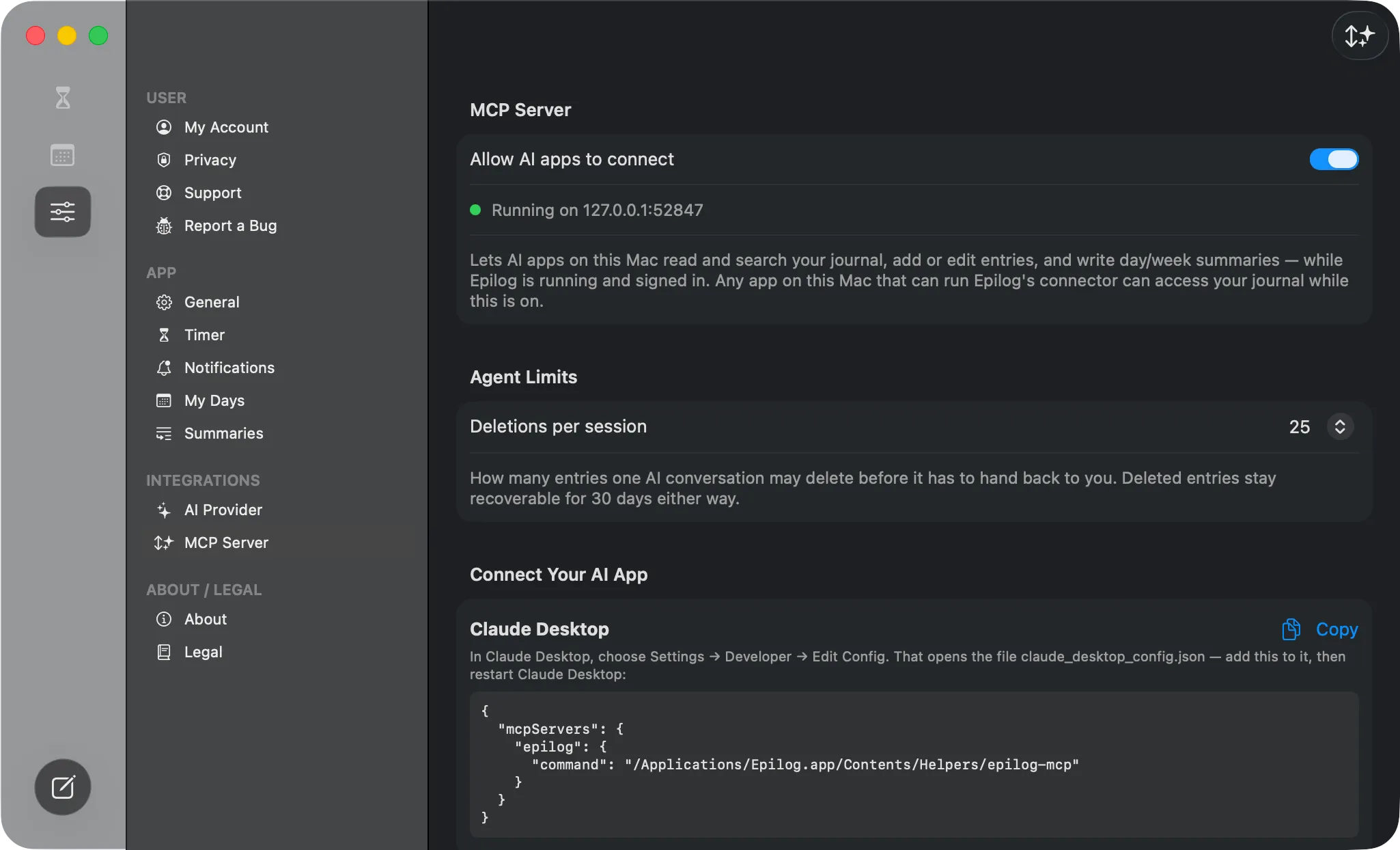 The MCP Server settings — the “Allow AI apps to connect” toggle, the running status, and (further down) the copy-paste setup snippets and agent limits.
Turning it on
Section titled “Turning it on”- Go to Settings → MCP Server.
- Switch on Allow AI apps to connect. A status line confirms it’s running.
- Under Connect Your AI App, copy the ready-made config snippet for your app (Claude Desktop, Claude Code, or Cursor) and paste it where that app keeps its MCP settings.
- Restart your AI app if it asks, and it’ll find Epilog.
Once connected, a small status button appears in Epilog’s toolbar showing whether the connection is live; click it to toggle the server.
What an assistant can do
Section titled “What an assistant can do”Through Epilog, a connected app can:
- Read & search your entries, and list your categories.
- Add, edit, and delete entries.
- Write summaries — for a day, a week, or a longer period (month, quarter, half-year, year, or a custom date range). An assistant’s writes never overwrite the summary Epilog’s own AI generated.
- Restore a deleted entry — deletions stay recoverable for a while, so nothing is lost by accident.
Staying in control
Section titled “Staying in control”- Nothing works unless Epilog is running and you’re signed in — close Epilog and the door is closed.
- Under Agent Limits you can cap how many deletions per session an assistant may make (10, 25, 100, or unlimited), so an over-eager assistant can’t clear out your log.
Back to the Epilog User Guide.