Epilog User Guide
Epilog is a gentle work journal and check-in timer. It nudges you at a steady rhythm to jot down what you’re working on, then quietly builds a searchable record of your days — with optional AI summaries. It runs on Mac, iPad, and iPhone, and syncs across all of them.
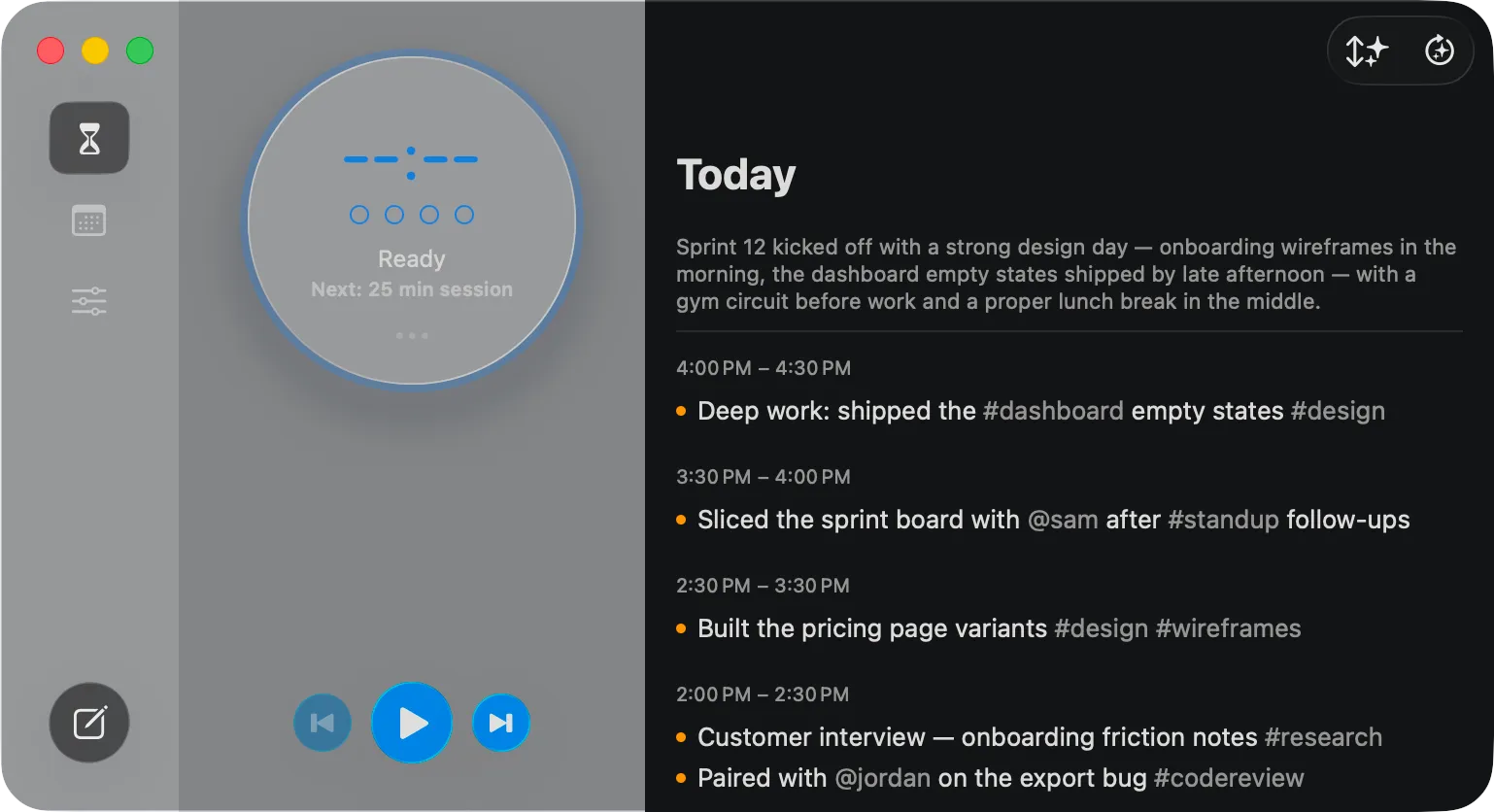 The Today view on Mac — the circular check-in timer on the left, the day’s entries on the right.
Getting started
Section titled “Getting started”- Open Epilog and sign in. Use Sign in with Apple, Sign in with Google, or an email and password. (New here? Tap Sign up.)
- Add your categories. Categories are the buckets your entries fall into — like Work, Admin, Personal. Head to Settings → My Days → Add Default Categories to start with a sensible set, or add your own.
- Start the timer on the Today screen and get to work. When it chimes, jot a line about what you did.
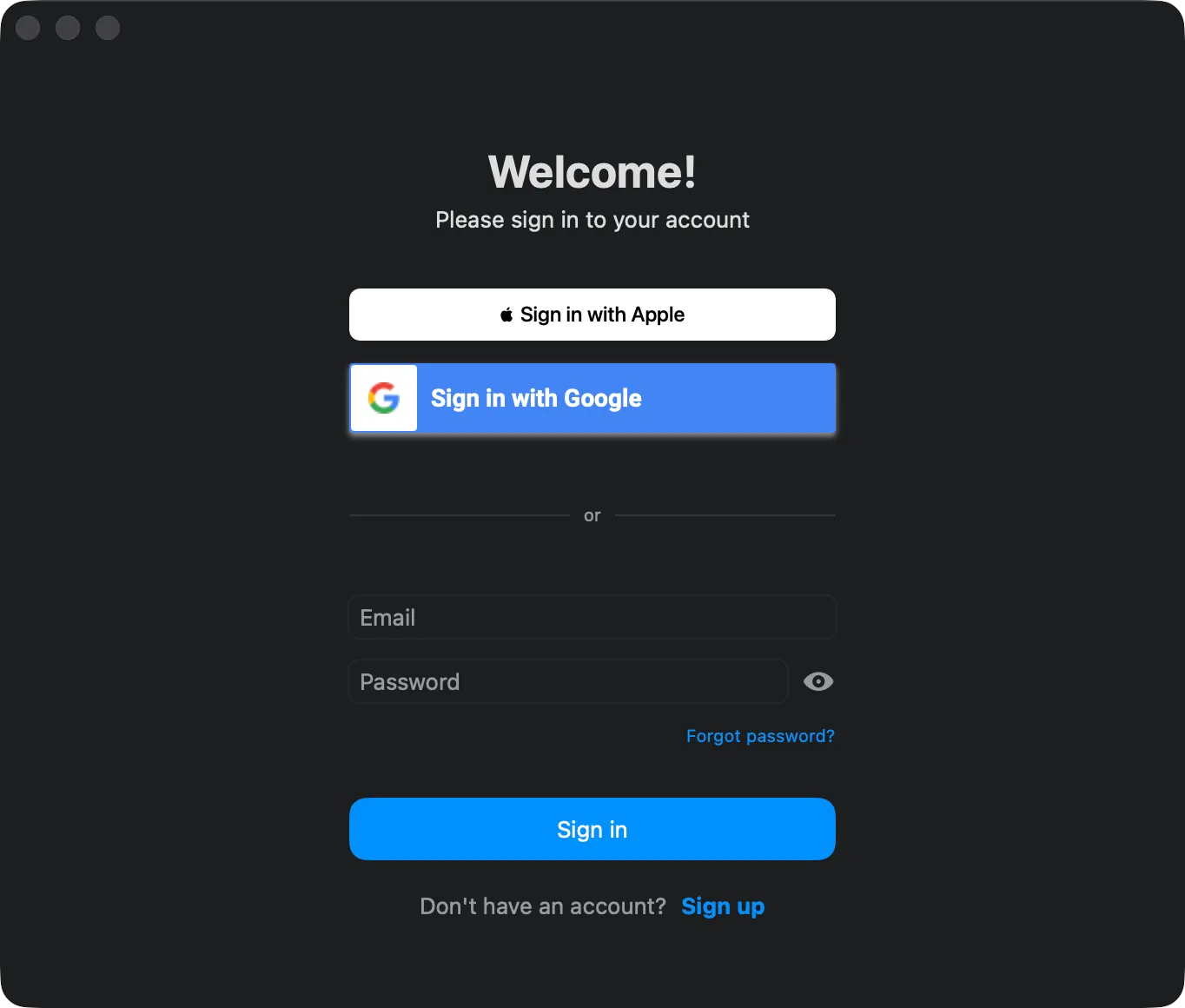 The sign-in screen.
That’s the whole loop: work → check in → repeat. Everything else is there to help you look back.
Your entries sync automatically across your devices. You won’t normally notice it — but if something ever can’t reach the cloud, an amber Sync button appears in the toolbar. Click it to retry.
Finding your way around
Section titled “Finding your way around”Epilog has three sections:
| Section | Icon | What it’s for |
|---|---|---|
| Today | hourglass | The check-in timer and today’s entries. Where you live during the workday. |
| My Days | calendar | Browse, search, and filter everything you’ve logged. |
| Settings | sliders | Preferences, categories, AI, and your account. |
On iPad and iPhone these are a switcher at the top (or tabs along the bottom on iPhone); on Mac they’re a rail down the left side.
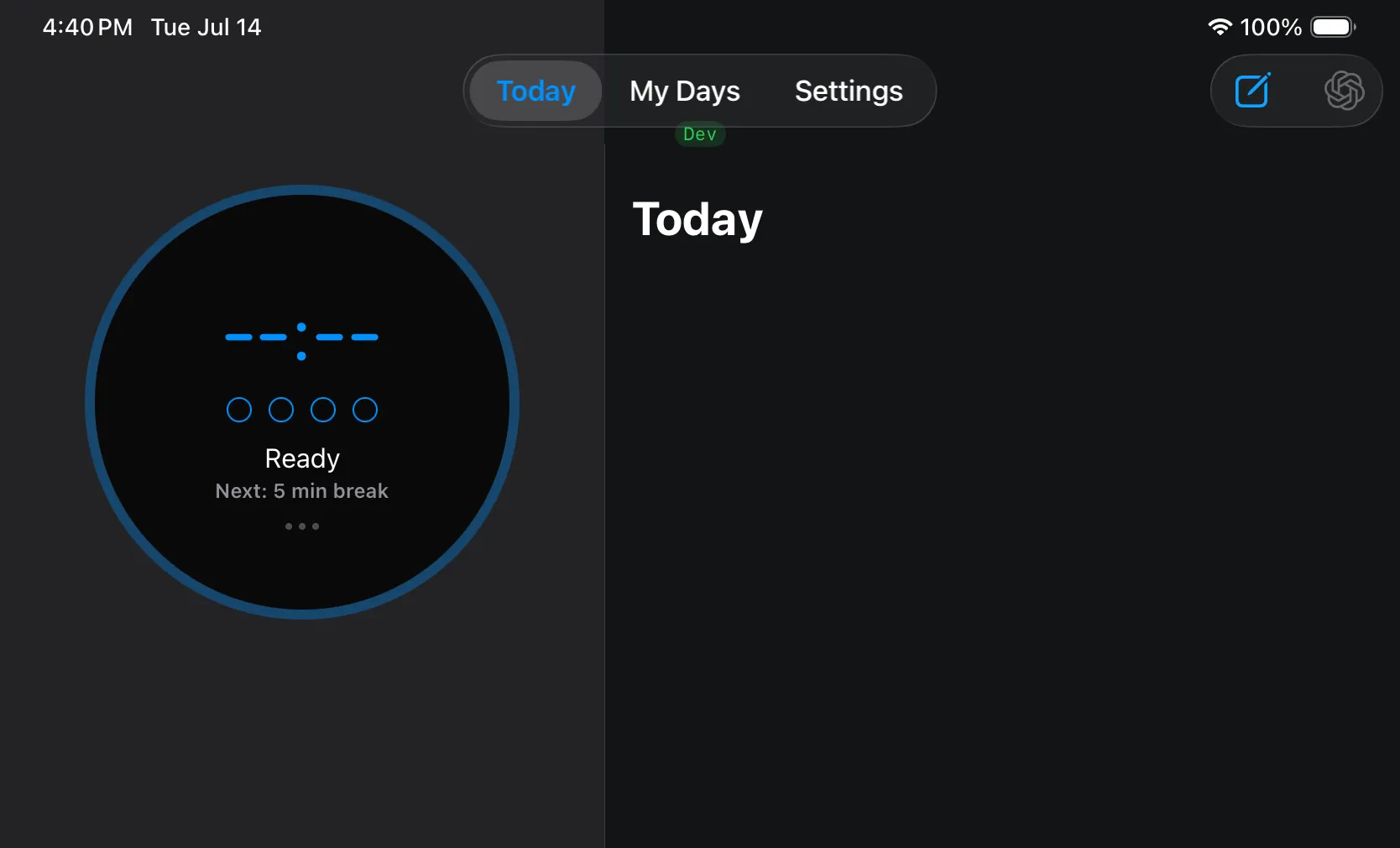 The three sections on iPad — a Today / My Days / Settings switcher up top.
Getting the app
Section titled “Getting the app”- Download & Install — the download page and what to expect on first open. (coming soon)
- First Run — first run, and creating your account. (coming soon)
The rest of this guide
Section titled “The rest of this guide”- The Timer — how check-ins, breaks, and the controls work.
- Entries, Categories & Tags — writing entries, sorting them by category, and using
#tagsand@mentions. - My Days — looking back: browsing, filtering, and tag clouds.
- Summaries — AI-written recaps of your days, weeks, months, and more (on-device or bring-your-own-key).
- Settings — every preference, plus managing your account.
- Connecting AI Apps (MCP) — let apps like Claude read and add to your journal (Mac only).